Add QuickJobs to Chrome.
QuickJobs is in the Chrome Web Store. Add it in one click, sign in with the email your invite was sent to, and run your first search. It takes about three minutes.
QuickJobs is added to Chrome on a laptop or desktop. Send this page to yourself and open it there; the steps below show what happens next.
Opens the Chrome Web Store in a new tab. You'll need Chrome on a computer and your invite email, which has your invite code.
After you add it
Add it from the store
On the QuickJobs page in the Chrome Web Store, click Add to Chrome, then Add extension. Chrome adds it straight away.
Pin it and sign in
Click the puzzle-piece icon in Chrome's toolbar and pin QuickJobs. Click its icon, enter the email your invite was sent to, then the 6-digit code we email you.
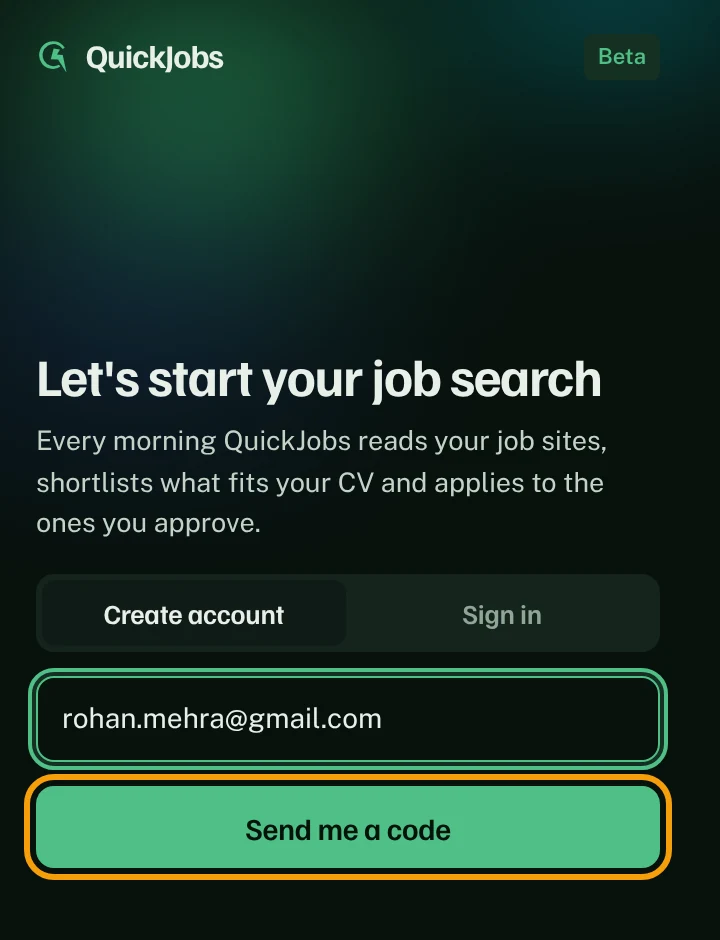
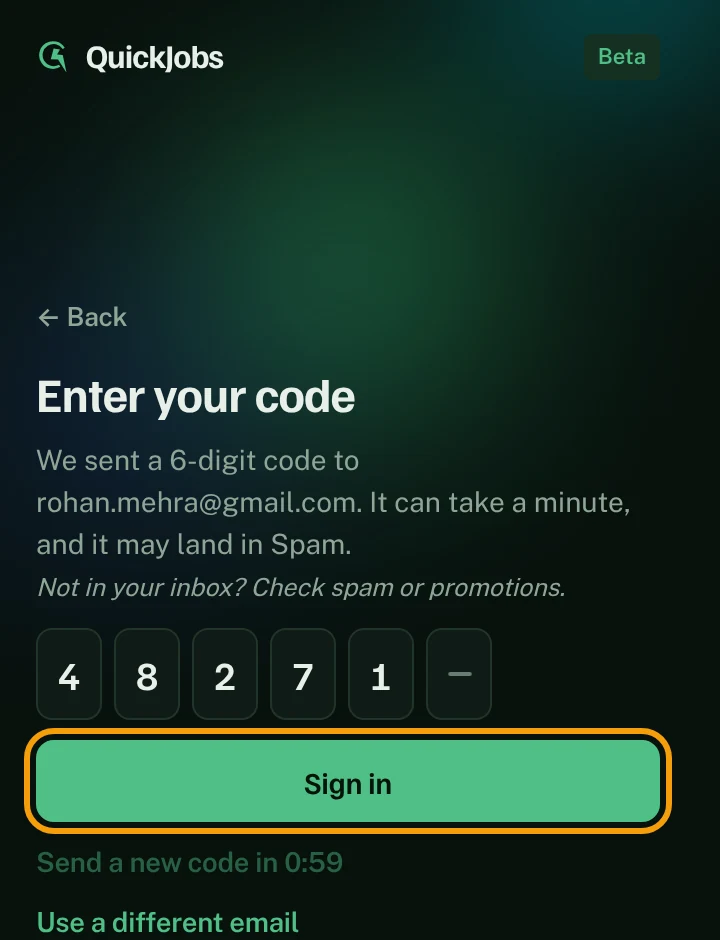
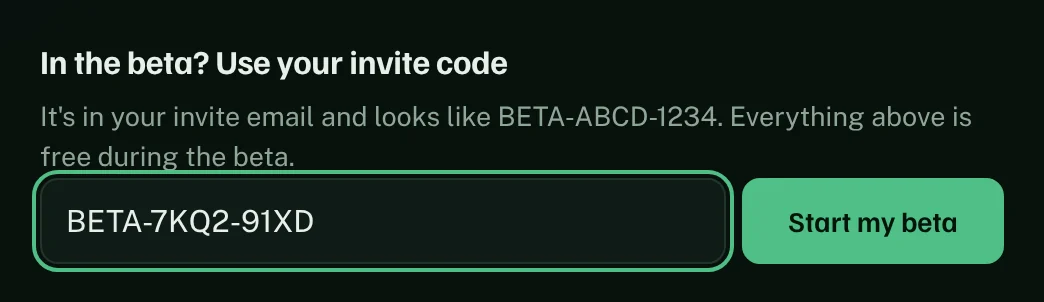
Set up and enter your invite code
Upload your CV, pick your roles, cities and job sites, then type the invite code from your email and click Start my beta.
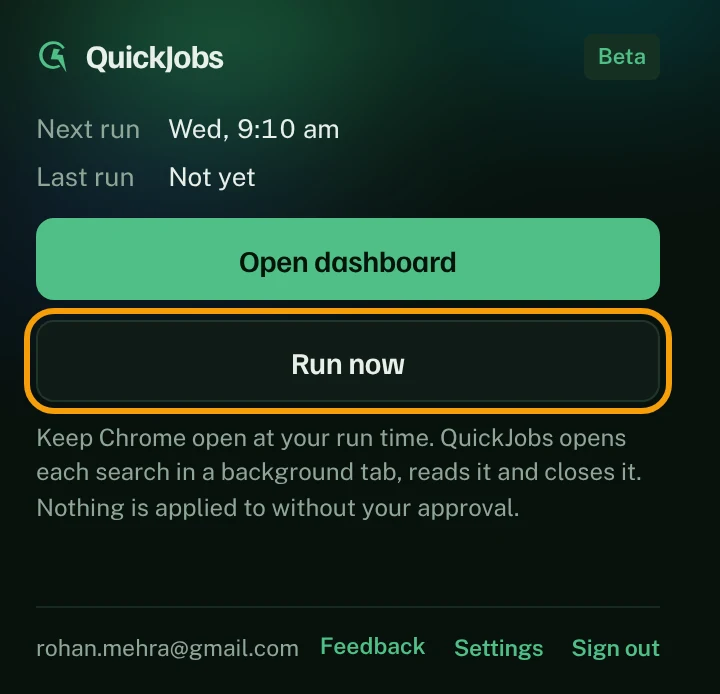
Click Run now
Sign in to your job sites in Chrome as you normally do, then click the QuickJobs icon and Run now. After this first run, it runs by itself every day.
Something not working?
- Can't see the QuickJobs icon: click the puzzle-piece icon at the top right of Chrome and pin QuickJobs.
- No code email: check Spam, wait a minute, then click Send a new code.
- Store page won't open: make sure you're using Google Chrome on a computer, then try the button again.
- Updating: Chrome updates QuickJobs for you automatically.